Composer – Step 3 create Alias Set

Composer – Step 3 create Alias Set
  1. This alias represents a person who is  authorized to review submitted documents and check them for completed informationadjudication_user: This alias represents a person who is authorized to approve or deny processed claims.
    File–>New–>Other–>select Alias Set in the wizard

    Click Finish.
    The Alias Set pane appears in Composer.
  2. You can enter a description to understand the alias set.
    Create a new Aliases to click on Add
    Specify the following information for the fields and click OK.Artifact Name:  processing_user
    Type:  User

    Ensure that the alias that you just created is highlighted and click on the Parameter radio button in the  Value section.

  3. Click on the Select button for the Parameter field and select the processing_parameter installation parameter from the list.

  4. Add another alias to the alias set with the following information:
    Name: adjudication_user
    Type: User
    Parameter: select the radio button and choose adjudication_parameter

Two aliases are created.

Composer – Step 2 Installation Parameters

Composer – Step 2 Installation Parameters

Create two installation parameters for two alias sets.
With installation parameters, you can specify the values for the aliases during the installation of the application.
File–>new–>other–> select Installation Parameter in the wizard and click next.

Installation Parameter Artifact:

select User Intallation Parameter as Parameter Type.

click Finish.

Save the project and check the Problems and Error log tab. No problems or errors should be displayed.

Create another installation parameter with the following settings:

Artifact name: Adjudication_parameter

Parameter type: User Installation Parameter

Description: This parameter represents the user that specifies the adjudicator

Composer – Setp 1 create a new custom type

Composer – Setp 1 create a new custom type


  1. Create a new project
    File –> new –> project
    select Documentum Project and enter a new project name
  2. Create a new custom type
    expand the Documentum Navigator on the left hand side
    file–>new–>other–>select Type and click next
    enter a new Artifact name and click Finish.
    In the main composer window the General tab displays.
    1st we need a supertype object. Select dm_document as supertype, because we need the document properties.
    2nd on the attributes tab creates a new attribute
    In the Structure section, specify the following values for the fields:

    1. Data Type = STRING
    2. Length = 20

    Expand the status attribute node and click on Value mapping. The Conditional Assistance and Value Mapping Table sections appear on the right side.
  3. In the Conditional Assistance section, click on New (screenshot).

    It is possible to enter a fixed value list or enter a DQL query. Select the checkbox for List is complete. This prevents any custom input being entered for the status attribute.

    Click OK to finish this action.
    Save the project and check the Problems and Error log tab. No problems or errors should be displayed.

  4. Display tab:
    create a new display configuration (screenshot)In the Configuration  Label field, type an unique and comprehensible name. This will be the name of  the tab as displayed in Webtop. Select the checkbox Custom attributes only and add all of your custom attributes.
    Click OK to finish this action
    In the Application Interface Display section, typean unique and comprehensible name for the Type Label field. This text  is displayed in the drop down menu when selecting a type for a new  document in Webtop. Save the project and check the Problems and Error log tab. No problems or errors should be displayed.

Documentum lifecycle basics

Documentum lifecycle basics


Lifecycle performers

+ Session User
+ Superuser
+ Lifecycle User
+ named User
Minimum permission:
Permission: wirte
Extended permissions: change state


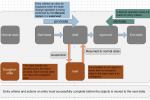
This figure shows the entry criteriea and the possible lifecycle state actions
lifecycle state in a example environment
© www.crazyapple.com


This figure displays one lifecycle from draft to archived state. The states “inreview” and “approved” have a workflow. If the workflow is finished successfully the lifecycle state will be promoted.

Document lifecycle with workflows
© www.crazyapple.com